WELCOME
Dear User,
Thank you for choosing Portman P1 mini™ – the original product with a registered design.
We are proud to deliver you the highest quality, greatest design and real passion with our product.
Each fixture in the Portman portfolio is different, yet all of them ensure you the best performance to support your creativity.
FOR YOUR SAFETY, PLEASE READ THIS USER MANUAL CAREFULLY BEFORE YOUR INITIAL START-UP!
Please remember:
- any updates on this document,
- current products’ libraries,
- current products’ firmware,
- RMA procedure
can be found on our webpage in the support area:
WARNING! This product is for professional use only! It is not for household use.
This product presents a risk of lethal or severe injury due to heat, electric shock, fire or falls.
Intense and flashing light could trigger epileptic seizures. Read this manual before your
initial start-up and follow the safety information in this manual and engraved on the fixture.
Every person involved in the installation, service and maintenance of this device must be
qualified and have experience in working with stage lighting fixtures.
Before your initial start-up, please make sure that there is no damage caused by transportation.
Should there be any, consult your dealer and do not use the device.
Please consider that damages caused by manual modifications to the device are not subject to warranty.
CAUTION! Keep this device away from rain and moisture!
CAUTION! Be careful with your operations! With a dangerous voltage you can
suffer an electrical shock when touching the fixture and wires!
CAUTION! When in operation the fixture’s surface becomes hot. Allow the device
to cool down for approximately 30 minutes before any maintenance or service.
Keep a minimum 0,7-meter distance from flammable materials to the fixture.
CAUTION! Avoid looking directly into the light source (meant especially for epileptics)!
CAUTION! Unplug mains lead before opening the housing, installing the lamp or the fuse. Allow the device to cool approximately 1 hour prior to manipulating with it.
Protection against electrical shock
• Disconnect the fixture from AC power when not in use.
• Disconnect the fixture from AC power before any maintenance or service.
• Do not remove the rear cover. There are no user-serviceable parts inside.
• Always ground the fixture electrically.
• Use only the wires attached to the kit. If the power cable shows any sign of damage do not use it!
• Use only a source of AC power that complies with local building and electrical codes and has both overload and ground-fault protection.
• Do not expose the fixture to rain or moisture.
Protection against burns and fire
• Never operate when the fixture is damaged or some part is missing.
• Do not touch the surface when the fixture is in operation. The exterior of the fixture can reach temperatures up to 100°C (212°F). Allow the fixture to cool for approximately 30 minutes before any maintenance or service.
• Keep all combustible and flammable materials (for example fabric, wood, paper) at a distance of at least 1 meter away from the fixture. Do not cover the fixture when in operation and when it is hot.
• Do not modify the fixture.
• Do not operate the fixture if the ambient air temperature exceeds 45°C (113°F).
• Do not operate the fixture after an extreme change in the surrounding environment temperature. Allow the fixture to acclimate for at least an hour before operating.
Protection against falls
• Use only professional tripods and clamps to mount the fixture. Ensure, that the clamp or tripod is designed to withstand the weight of the fixture.
• Ensure that the structure intended for installation can hold at least 10 times the weight of all installed devices.
• Ensure that all fixtures are attached correctly to the structure and use an approved means of secondary attachment such as a safety cable.
• Block access below the work area whenever installing or removing the fixture.
Protection against eyesight damage and epileptic seizure
• Do not stare directly into the light sources. Never look at an exposed light source while it is lit.
• Provide advance notice that a flashlight is in use.
• Avoid long cycles of rapid flashing light.
• Always use safety glasses to protect your eyes when opening the front cover.
TECHNICAL SPECIFICATION
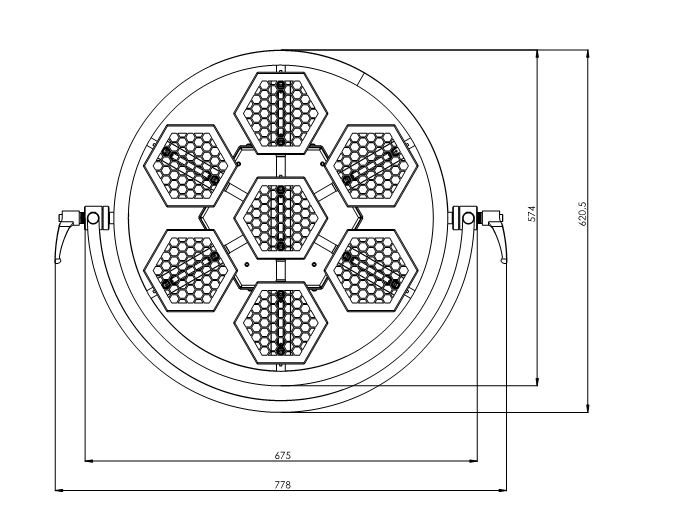
| dimensions | 778 x 620 x 172mm |
| (30.63 x 24.41 x 6.77 in) |
| weight (fixture
only) | 9 kg |
| (17,64 lbs) |
| input voltage | 100-240V 50Hz/60Hz |
| power consumption | 90W |
| light source | PCB Filament 1800K 3W + RGBW | RGBW GLOW |
| power | 7 x 3W | 14 x 10W |
| colour temperature | 1800 K | glow white 6300K |
| CRI | >90 |
| beam angle | 94o |
| DMX channels | 19, 43, 50, 42, 49 |
| DMX modes | 5 |
| connectors | 2 x 5-PIN DMX (inlet and outlet) |
| 1 x
EtherCON |
| 1 x AC
powerCON TRUE1 (inlet and outlet) |
| 1 x SMA
(WDMX antenna) *optional |
| other features | built-in dimmers |
| built-in display and buttons |
| built-in
macros |
| WDMX
module optional |
| Appliance class | Class I | |
|
| IP rating | IP20 |
| declarations of conformity | CE | UKCA | |
|
PRODUCT OVERVIEW
Dimension
Kit content (what’s in the box)
• 1x P1 mini™
• 1x AC power wire 2m
• 1x User Manual
Optional accessories (not included)
• W-DMX module
• flight case
PREPARATION FOR USE
AC power connection
Luminaire must be powered with 100-240V and 50/60Hz. This fixture will automatically detect the alternating current frequency. To turn on the fixture, simply plug in the powerCON TRUE1 and set the power switch to “ON”. Use only high quality 3 x 2.5 mm2 or larger mains power cords. Inspect all the power feed cables for damages before use. Make sure to always connect the fixtures to a protected circuit with an appropriate electrical ground. Never connect the fixture to a dimmer plug, even if it supplies proper current.
Only qualified electricians following all known electrical regulations can install the fixtures.
Luminaire comes with a power input cord terminated with powerCON TRUE1 on one end and tube connectors on the other end. Follow the rules from the table below to assemble the power plug to the wire:
| Connection | EU wires | US wires |
| Live | L | Brown | Black |
| Neutral | N | Blue | White |
| Earth | PE | Green/Yellow | Green or Green/Yellow
|
CAUTION! Do not use the power cord without a plug attached!
CAUTION! Always double-check the wire with a plug attached before use!
REMEMBER! Only a qualified person can change or install the plug!
Installation
Before mounting the fixture, read and follow all safety recommendations indicated in the Safety Information.
The Luminaire may be installed on a tripod, a clamp or a floor base. The fixture has a 13 mm (0,512 in) hole for a spigot, rigging clamp or screw. Before rigging operations make sure that the structure onto which you are mounting the fixtures can withstand the weight of all of the fixtures. Check if there is enough room for ventilation, configuration and maintenance in the location where you want to place the fixture. You must secure every hanged fixture with an appropriate safety wire. Make sure there are no people under the work area when hanging fixtures. You can aim the fixture to any position that you want except towards the rigging structure. The main part can spin 360 in the yoke. Remember not to let the power and DMX wires touch the surface of the fixture. Always keep a safe distance from the closest object.
REMEMBER! Always secure the hung fixture with safety wire!
CAUTION! Incorrect installation may result in the device falling and may damage it or cause damage to other objects!
REMEMBER! Always secure hanged fixture with safety wire!
To adjust the position of the fixture when aiming it to the desired angle, use the side handles. Loosen them by turning them counterclockwise before adjustment and set the desired angle. Tighten the handles after adjusting the position by turning them clockwise. Operate handles carefully and manually only. Tools can damage them.
You can easily change the orientation of tightened handles to make your rig looks even better. Gently pull the tightened handle to disengage its teeth and rotate it into the desired orientation. By releasing the handle the return spring automatically engages the teeth.
Operation modes
The luminaire can work in three operation
modes: DMX, MASTER and SLAVE. DMX mode is designed to work with DMX consoles.
MASTER mode is designed to operate the fixture manually, without an external
controlling signal. In the MASTER mode, the fixture sends a controlling signal
on the DMX output socket. The signal can control other units in SLAVE mode.
Please consider that unit in MASTER mode connected to a regular DMX chain can
corrupt DMX signal quality. The SLAVE mode allows you to control the fixture
with the control signal sent from a unit in MASTER mode. However, the DMX
signal has got the highest priority and the fixture always reacts to the
connected DMX signal regardless of the operating mode.
| Operation mode |
Regular |
Macro |
| DMX wire connected |
reacts to DMX |
reacts to DMX |
| WDMX connected |
reacts do WDMX |
doesn’t react to WDMX |
| DMX disconnected |
keeps last DMX frame, or turns off all lighting sources
(depends on settings) |
gets back to last macro/manual setting |
| Power turned on |
all lighting sources off |
gets back to last macro/manual setting |
| Main screen |
address setting |
macro number setting |
There are three ways to operate the fixture in the Regular mode. You can use DMX wire, onboard manual control or WDMX to control the fixture(if the WDMX card is installed). You can link the P1 Mini to a DMX controller using a 5 pin DMX wire, or Wireless Solution Sweden hardware (if WDMX card is installed). You can control each channel individually whether with a DMX controller or a manual control build in the fixture. The P1 mini has got only one 7-channel DMX personality and it does support RDM. In Regular mode fixture does not remember manual settings after reset.
To remember manual settings after reset you have to use Macro mode. You can set any lighting scene using manual control section in the fixture’s menu or play build in macros. The fixture always switches to DMX when DMX wire connected. After disconnecting DMX in Macro mode fixture always gets back to last macro/manual setting.
RDM
RDM (Remote Device Management) is an enhancement of the DMX 512 protocol and allows bi-directional communication between DMX consoles and fixtures. It works simultaneously with DMX 512 and on the same lines and wires. RDM is not affecting non-RDM devices in a line however, non-RDM devices can disrupt communication with the console. RDM allows you to change the fixture’s options (such as DMX address) without even touching neither ladder or fixture’s buttons. The fixture fully supports the RDM standards.
Manual operation
The fixture works in manual operation when it’s not receiving DMX signal whether wired or wireless. You can adjust the brightness of all filaments at once from main screen, or you can control each source individually from the “MANUAL CONTROL” option in the menu (refer to the “Menu” chapter to learn how to manually control channels). To enter menu simply hold enter for 2 seconds.
DMX 512
The fixture automatically switches into DMX mode after receiving DMX data. To learn how to change the DMX address or signal source (wired or wireless) refer to the “Menu” chapter. When the fixture works in the wired DMX mode You can daisy chain fixtures using 5 pin DMX wires. When daisy-chaining remember, that you can connect up to 32 devices per DMX 512 universe. Always terminate the DMX 512 line. Put the 120 Ω terminator into the last device’s DMX OUT XLR socket.
When the fixture is being operated in the
wireless mode (only when the WDMX card is installed) it is receiving DMX 512
signal from Wireless Solution Sweden transmitters and can send the signal
throughout the 5-pin DMX OUT XLR socket. You can put the fixture with the WDMX
card installed as the first fixture in a line and use it as a WDMX receiver.
The fixture supports a bi-directional WDMX TRX module. It means, that the
fixture supports RDM in wireless mode too. To link fixture with the WDMX
transmitter first use the “UNPAIR ALL WDMX DEVICES” option from the menu, then
turn the scanning mode on the transmitter. The transmitter will link with all
unlinked devices. For more detailed information please refer to your
transmitter’s user manual.
REMEMBER! Always terminate DMX line!
Navigation buttons are located under the LCD display on the back panel. To enter the menu hold enter button for 2 seconds. To navigate the menu use the “+” and “-“ buttons. To exit the menu from any level hold enter for 2 seconds or use the exit function. For confirming simply push the enter button.
| Main
section |
Level 1 |
Level 2 |
Level 3 |
Description |
| ADDRESS: |
DMX ADDRESS |
|
|
Sets up the DMX start address |
| DMX SETTINGS |
DMX MODE |
SIMPLE |
|
Sets up the DMX mode. Refer to DMX chart for DMX
channels order. |
|
|
STANDARD |
|
|
|
|
STANDARD FINE |
|
|
|
|
PIXEL |
|
|
|
|
PIXEL FINE |
|
|
|
DMX INPUT |
WIRED |
|
Changes the DMX input to wired (default). In this mode
fixture is receiving DMX signal from the DMX IN 5 pin XLR socket. |
|
|
WIRELESS |
|
Changes the DMX input to wireless. This mode works only
when WDMX card is installed. Fixture is receiving DMX data from WDMX card. |
|
|
|
|
|
|
UPAIR DEVICES |
|
|
Upairs the unit from connected WDMX transmitters |
|
CHANGE WDMX MODE |
|
|
Changes the WDMX card mode (G3, G4S and G5) |
|
OPERATING MODE |
REGULAR |
|
Changes the fixture’s operating mode. Refer to Operation
Modes chapter for more info. Regular is default |
|
|
MACRO |
|
|
|
FLICKER MODE |
2.4kHz |
|
Changes the frequency of the LED driving signals. |
|
|
5.1kHz |
|
|
|
DIMM CURVE |
LINEAR |
|
Changes dimming curve of filaments. Halogen mode is
emulating behavior of halogen using also glow sources. Logarythmic is default. |
|
|
LOGARYTHMIC |
|
|
|
|
HALOGEN |
|
|
|
RESET ALL TO DEFAULT |
|
|
Resets all the options to default values. |
| WDMX SETTINGS |
PAIR DEVICES |
PAIRING MODE |
|
Switches device into pairing mode to connect it with
Wireless Solution Sweden WDMX transmitters. |
|
WDMX INFO |
WDMX INFO |
|
Shows WDMX card info. |
| RDM INFO |
MANUFACTURER |
|
|
Shows the name of the fixture’s manufacturer. |
|
DEVICE NAME |
|
|
Shows the fixture’s name given by manufacturer. |
|
DEVICE LABEL |
|
|
Shows the fixture’s name given by user. |
|
RDM ID |
|
|
Shows the fixture’s RDM unique ID number. |
|
FIRMWARE LPU1 |
|
|
Shows actual firmware version of LPU1 board. |
|
FIRMWARE LDB1 |
|
|
Shows actual firmware version of LDB1 board. |
| MANUAL CONTROL |
FILAMENTS |
ALL FILAMENTS |
0 – 100% BRIGHTNESS |
Sets all
filaments dimmer value |
|
|
FILAMENT CH.1 |
0 – 100% BRIGHTNESS |
Sets filament pixel 1 dimmer value |
|
|
FILAMENT CH.2 |
0 – 100% BRIGHTNESS |
Sets filament pixel 2 dimmer value |
|
|
FILAMENT CH.3 |
0 – 100% BRIGHTNESS |
Sets filament pixel 3 dimmer value |
|
|
FILAMENT CH.4 |
0 – 100% BRIGHTNESS |
Sets filament pixel 4 dimmer value |
|
|
FILAMENT CH.5 |
0 – 100% BRIGHTNESS |
Sets filament pixel 5 dimmer value |
|
|
FILAMENT CH.6 |
0 – 100% BRIGHTNESS |
Sets filament pixel 6 dimmer value |
|
|
FILAMENT CH.7 |
0 – 100% BRIGHTNESS |
Sets filament pixel 7 dimmer value |
|
GLOW |
GLOW DIMMER |
0 – 100% BRIGHTNESS |
Sets glow all
pixels dimmer value |
|
|
RED |
0 – 100% RED |
Sets glow red value |
|
|
GREEN |
0 – 100% GREEN |
Sets glow green valuer |
|
|
BLUE |
0 – 100% BLUE |
Glow blue value |
|
|
WHITE |
0 – 100% WHITE |
Glow white value |
|
MACRO |
MACRO SELECT |
MACRO NUMBER SELECT |
Selects macro |
|
|
MACRO SPEED |
MACRO SPEED |
Sets the macro speed |
|
CLEAR ALL VALUES |
|
|
Clears the lighting output of the fixture |
| EXIT |
|
|
|
Exits from main section of the menu to main screen. |
Thank you for buying
original products!
By buying original products you buy the real
quality but also support creativity and
progress in the industry.
Any problem and/or question according to fixtures
– contact us following these steps:
1. Send a message here:
support@portmanlights.com
Remember to add these important details:
[Serial number of the fixture]
[Issue description, videos, pictures]
2. Continue using a ticket number
You will receive
an automatic ticket number. Our Support team has up to 48h to start resolving
the issue. You may be asked for more details by our support team or by a
distributor. Always use your ticket number for quicker resolution of the case.
© 2016-2024 Portman Lights Sp. z o. o. All rights reserved.
The information and specifications are subject to change without notice.
Portman Lights Sp. z o. o. disclaims liability for any injury, damage, direct or indirect loss,
consequential or economic loss or any other loss occasioned by the use of,
inability to use or reliance on the information contained in this user manual.